
Auditing NetSuite configuration changes is not just an IT housekeeping task. It is a control activity that protects revenue recognition, approval workflows, permissions, integrations, reporting logic, and the trust executives place in the ERP.
The challenge is that NetSuite configuration activity often behaves like a black box. A role permission is adjusted, a workflow condition is edited, a script deployment is changed, or a saved search feeding a finance report is modified. Weeks later, a close process slows down, an approval is bypassed, or an auditor asks who changed what and why. Native NetSuite evidence exists, but it is often fragmented across System Notes, setup audit records, workflow history, script logs, and change tickets.
This guide explains how to audit configuration changes in NetSuite step by step, from defining scope to investigating root cause and building continuous monitoring. It also shows where native audit methods work well, where they become slow, and why mid-market companies often need an X-ray view of NetSuite change history to make faster, lower-risk decisions.
What Counts as a NetSuite Configuration Change?
A configuration change is any update that changes how NetSuite behaves, secures data, automates work, calculates results, or presents information to users. Some changes are obvious, such as editing a workflow or deploying a SuiteScript file. Others are easy to underestimate, such as adjusting a form field display type or changing who can access a saved search.
Common NetSuite configuration changes include:
- Role, permission, and access changes
- Workflow definitions, transitions, conditions, and actions
- Script records, script deployments, parameters, and execution contexts
- Custom fields, custom records, custom forms, and custom segments
- Saved searches, reports, dashboards, and analytics workbooks
- Accounting preferences, enabled features, tax settings, and approval rules
- Integration users, tokens, bundles, and SuiteApp configuration
- Subsidiary, location, department, class, and other classification setup
For audit purposes, the key question is not only whether a change happened. You need to prove who made it, when it happened, what changed, whether it was approved, whether it was tested, and what business process it affected.
If you are still aligning NetSuite ownership, support responsibilities, and operating model, DataOngoing’s guide to choosing a NetSuite managed service partner can help you define who should own the ongoing control environment.
Before You Start: Set the Audit Objective
A NetSuite configuration audit should begin with a clear objective. Without one, the work can expand endlessly because nearly every object in NetSuite has some configuration relevance.
Start by deciding which of these audit scenarios applies:
| Audit scenario | Primary goal | Typical time window |
|---|---|---|
| SOX or compliance evidence | Prove controlled change management and access governance | Quarter, fiscal year, or audit period |
| Incident investigation | Find the change that caused a broken workflow, report, or integration | Hours, days, or weeks before the issue |
| Security review | Identify unauthorized access, privilege escalation, or risky role changes | 30 to 180 days, depending on risk |
| Optimization review | Detect configuration drift, script bloat, unused customizations, and technical debt | 6 to 24 months |
| Pre-project assessment | Establish current state before implementation, cleanup, or integration work | Current baseline plus recent history |
This objective determines the records you review, the evidence you collect, and the level of detail you need. A SOX audit usually needs defensible approvals and segregation of duties evidence. An incident investigation needs a fast timeline of changes before the failure. An optimization review needs patterns, not just individual events.
Step 1: Define the Scope and Risk Areas
Do not begin by exporting every System Note you can find. Begin with the business processes most exposed to financial, operational, or security risk.
For many mid-market NetSuite environments, the highest-risk areas are order-to-cash, procure-to-pay, record-to-report, inventory costing, revenue recognition, integrations, and user access administration. Within those processes, prioritize the configuration objects that can change outcomes without leaving an obvious operational footprint.
For example, an approval workflow change may let a purchase order bypass a manager. A role change may allow a user to edit vendor bank details. A saved search change may alter the population behind an executive dashboard. A script deployment change may silently update transaction fields at scale.
Your scope should document three things: the NetSuite objects in scope, the audit period, and the risk rationale. This becomes the basis for evidence requests, auditor discussions, and remediation prioritization.
Step 2: Establish a Baseline of Current Configuration
Before you review historical changes, capture the current state. A baseline gives you something to compare against and helps you identify drift.
At minimum, document the current configuration for the objects in scope. For workflows, capture status, release state, initiation rules, transitions, conditions, and actions. For scripts, capture script records, deployments, parameters, audiences, execution contexts, and owners. For roles, capture permissions, restrictions, centers, employee assignments, and administrator-level access. For customizations, capture custom fields, forms, records, lists, segments, and dependencies.
If your organization uses SuiteCloud Development Framework, source control, or a deployment pipeline, compare the current account state against the expected state. If your changes are mostly manual, this baseline becomes even more important because it may be the first complete view of what is actually running in production.
A baseline is also where many companies discover the ERP tax: they have paid for years of customizations, but no one can quickly explain what is still used, what is risky, and what has drifted from the original design.
Step 3: Collect Native NetSuite Audit Evidence
NetSuite provides multiple native evidence sources. The problem is that they are not always centralized around the business question you are trying to answer. You may need to combine several views to reconstruct a complete story.
The Oracle NetSuite Help Center is the authoritative reference for account-specific features and permissions, but in practice, most audit work relies on a combination of System Notes, setup audit records, login history, workflow history, script logs, and external change tickets.
| Evidence source | What it helps answer | Common audit use |
|---|---|---|
| System Notes and System Notes v2 | Who changed a record field, when, and from what old value to what new value | Custom records, entities, transactions, roles, fields, and many configuration records |
| Setup Audit Trail | Which account-level setup or preference changes occurred | Enabled features, accounting preferences, company setup, and other setup activity |
| Login Audit Trail | Whether a user accessed NetSuite at a relevant time and from what context | Unauthorized access, suspicious timing, and user activity validation |
| Workflow history and execution logs | Whether a workflow ran, failed, or followed a specific path | Approval issues, routing errors, and process automation failures |
| Script execution logs | Whether scripts executed, errored, or changed behavior after deployment | Integration issues, performance problems, and unintended automation effects |
| SDF or version control history | What configuration was expected to be deployed | Comparing intended changes to production state |
| Change tickets and approvals | Why the change happened and who approved it | SOX evidence, governance, and management review |
When exporting evidence, preserve the fields that support auditability: timestamp, user, role, context, record type, record ID, field name, old value, new value, source, and any related ticket or deployment reference. If values appear as internal IDs, record the translated business name where possible so reviewers can understand the impact.
Step 4: Build a Change Register
A change register is the working file that turns fragmented NetSuite evidence into an audit trail a business stakeholder can understand. It does not need to be complex, but it must be consistent.
Each row should represent a meaningful configuration change or a grouped set of related changes. For example, editing five conditions in the same approval workflow under one approved ticket may be grouped as one change package. Updating unrelated role permissions across several users should usually be separated.
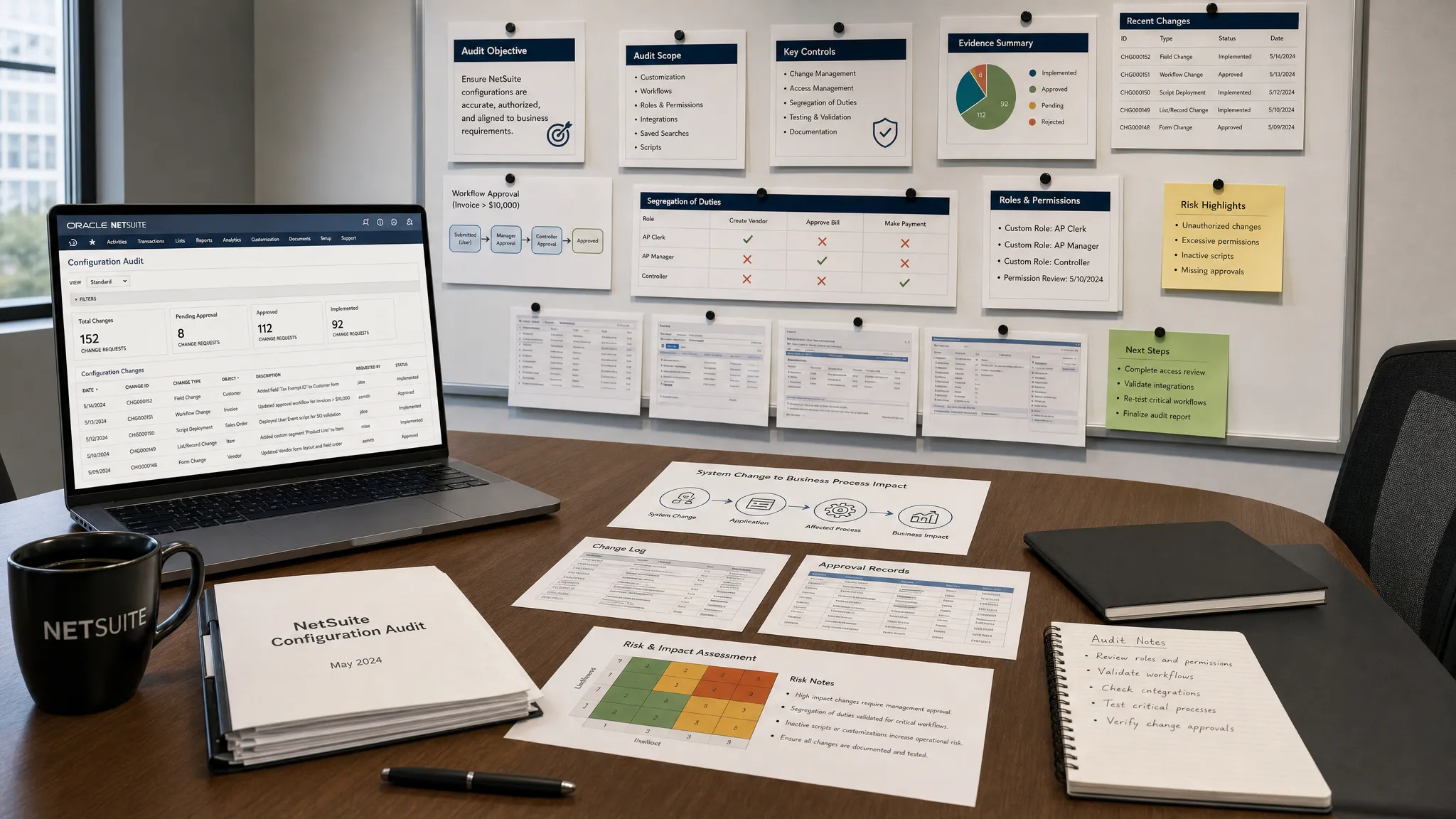
Your register should include these columns: change ID, date and time, NetSuite object, record ID, field or setting changed, old value, new value, changed by, role used, context, source evidence, related ticket, approval owner, business process affected, risk rating, test evidence, and final disposition.
The purpose is not to create paperwork for its own sake. The register lets you answer the questions executives and auditors actually ask: Was this change authorized? Was it tested? Did it affect financial reporting, security, or operations? If something went wrong, who can fix it?
Step 5: Reconcile Changes to Tickets and Approvals
Once you have a change register, compare each change to your system of record for approvals. That may be Jira, ServiceNow, Azure DevOps, Asana, a spreadsheet, or another change management process. The tool matters less than the evidence quality.
A clean change should have a clear business request, impact assessment, approval, deployment date, test evidence, and owner. A suspicious change may have no ticket, a vague ticket, a mismatch between approved scope and actual change, or a user who should not have made the update.
For SOX-relevant environments, this step is critical because auditors are not only looking for a list of changes. They need evidence that changes affecting financial reporting were authorized, tested, and moved into production under controlled conditions. The PCAOB’s standard on internal control over financial reporting underscores why change control evidence matters when systems influence financial statements.
Step 6: Risk-Score the Changes
Not every configuration change deserves the same level of scrutiny. A spelling correction on a form label is not the same as granting a user full access to vendor payment data. Risk scoring helps your team focus its investigation time where it matters.
Use a simple severity model that your finance, IT, and compliance stakeholders can understand.
| Severity | Example NetSuite changes | Recommended response |
|---|---|---|
| Critical | Administrator access granted unexpectedly, accounting preference changed, approval bypass introduced, integration credential altered | Investigate immediately, confirm authorization, assess financial and security impact |
| High | Workflow logic changed for approvals, script deployment modified, role permissions expanded, custom field driving reporting changed | Validate ticket, testing, approval, and downstream impact |
| Medium | Saved search criteria changed, form layout adjusted for a controlled process, dashboard reporting logic updated | Confirm business owner approval and review sample outputs |
| Low | Label updates, non-critical display changes, inactive customization cleanup | Document and close if approved |
Risk scoring should consider business impact, access sensitivity, financial reporting relevance, volume of affected transactions, reversibility, and whether the change was made manually, by script, by bundle, or through an integration.
Step 7: Investigate Exceptions and Reconstruct the Timeline
An exception is any change that does not match the approved story. It may be unauthorized, undocumented, outside the approved time window, performed by the wrong user, deployed directly to production, or larger than the ticket allowed.
For each exception, reconstruct the timeline. Start with the first known symptom, such as a failed workflow, wrong report number, unexpected permission, or integration error. Then look backward through configuration changes, login activity, script logs, workflow history, and related records.
A good timeline answers these questions:
- What changed immediately before the issue appeared?
- Was the change made by a user, script, workflow, bundle, CSV import, web services call, or integration?
- Did related objects change at the same time?
- Was there a sandbox test or deployment record?
- Did the change create downstream data changes or only configuration risk?
This is where native NetSuite review can become painfully slow. System Notes may show the field change, while the business impact is buried in workflows, scripts, role assignments, and approvals. A consultant working manually may spend many billable hours just trying to connect those dots.
DataOngoing solves this diagnostic drag with Aissistor, its proprietary X-ray tool for NetSuite. Instead of wandering through the black box, DataOngoing uses Aissistor to instantly surface historical changes, configuration drift, and security risks across the NetSuite ecosystem. Because Aissistor is proprietary to DataOngoing, DataOngoing is the sole provider of this X-ray visibility for NetSuite optimization.
Step 8: Validate Business Impact
After you identify a risky or unauthorized change, validate what it actually affected. This step prevents overreaction and ensures remediation is proportional.
For a workflow change, review transactions that entered the workflow after the change. Confirm whether approvals routed correctly, whether any records skipped required steps, and whether any financial thresholds were affected. For a role change, review who had the role, what sensitive records it exposed, and whether any changes were made during the access window. For a saved search or report change, compare outputs before and after the change if historical evidence is available.
For scripts and integrations, look at execution logs, error timing, deployment parameters, affected record types, and transaction samples. If the script changed data, identify the population of records touched and whether a reversal, correction script, or manual cleanup is required.
Document the impact in business language. Instead of writing only that a workflow condition changed from true to false, state that purchase orders over a defined threshold may not have routed to the required approver during a specific period, if that is what the evidence supports.
Step 9: Remediate the Root Cause
Remediation should fix both the immediate issue and the control weakness that allowed it. If you only revert a setting, the same problem can recur.
Common remediation actions include reverting unauthorized changes, correcting role permissions, disabling risky script deployments, restoring workflow conditions, updating saved search logic, and reprocessing affected transactions. Control remediation may include requiring sandbox validation, tightening production access, enforcing peer review, improving ticket requirements, and separating developers from production deployment authority.
For recurring issues, look for patterns. Are the same users making emergency changes? Are scripts deployed without consistent documentation? Are roles copied and modified without review? Are bundles introducing changes that no one validates? These patterns often reveal process debt, not just configuration debt.
This is also where the partner model matters. Traditional time-and-materials consulting often charges for the search before the fix. DataOngoing’s approach is designed to reduce that waste: Aissistor provides the X-ray, then DataOngoing’s engineers focus on targeted remediation. If you are evaluating whether proactive support can reduce the cost of keeping NetSuite stable, review DataOngoing’s breakdown of NetSuite managed services pricing and ROI.
Step 10: Move From Periodic Audit to Continuous Monitoring
A one-time audit is useful, but continuous monitoring is what keeps NetSuite from becoming a black box again. The goal is to detect risky configuration changes before they break workflows, weaken controls, or surprise auditors.
A practical monitoring program should include a defined baseline, high-risk change alerts, regular access reviews, monthly workflow and script reviews, quarterly role permission reviews, and a recurring technical debt assessment. Your team should also establish clear ownership for each critical customization so every workflow, script, and integration has a business owner and technical owner.
For mid-market companies, the biggest improvement often comes from shortening the time between change and visibility. If a risky role change is detected the same day, it is a control issue. If it is discovered six months later during an audit, it becomes an expensive investigation.
DataOngoing’s position is simple: do not pay consultants to wander in the dark. With Aissistor-powered X-rays, the decision becomes black and white. You can see what changed, understand the risk, and choose the technology partner equipped to optimize NetSuite with speed and precision.
Common Mistakes to Avoid
The most common mistake is relying only on System Notes. System Notes are essential, but they are not a complete control program by themselves. They must be connected to setup audit evidence, approvals, workflow behavior, scripts, access history, and business impact.
Another mistake is treating all changes equally. This creates audit fatigue and distracts from the configuration changes that can materially affect financial reporting, security, or operations.
A third mistake is failing to preserve evidence. If your team overwrites a configuration, updates a ticket, or changes a role before documenting the original state, the audit trail may become harder to explain. Capture evidence first, remediate second, unless there is an urgent security or operational risk that requires immediate containment.
Finally, do not let the audit end with a spreadsheet. The real value comes from turning findings into a better operating model: stronger access controls, cleaner deployment practices, proactive monitoring, and faster diagnosis when something breaks.
NetSuite Configuration Audit Checklist
Use this checklist as a final quality review before closing the audit.
| Audit checkpoint | Completed? |
|---|---|
| Scope, time window, and risk areas are documented | |
| Current configuration baseline is captured | |
| System Notes, setup audit evidence, logs, and tickets are collected | |
| Change register includes old value, new value, user, role, context, and timestamp | |
| Changes are reconciled to approvals and test evidence | |
| High-risk exceptions are investigated and risk-scored | |
| Business impact is validated with transaction or process samples | |
| Remediation fixes both the setting and the control gap | |
| Continuous monitoring plan is assigned to owners |
Frequently Asked Questions
How do I audit configuration changes in NetSuite? Start by defining the audit scope, capturing the current configuration baseline, collecting evidence from System Notes, setup audit records, logs, and change tickets, then reconciling each change to approvals and testing. Risk-score exceptions, validate business impact, remediate root causes, and move to continuous monitoring.
Are NetSuite System Notes enough for a configuration audit? System Notes are important, but they are usually not enough by themselves. A complete audit often requires setup audit evidence, login history, workflow logs, script execution logs, version control history, and external approval records.
Which NetSuite configuration changes are highest risk? The highest-risk changes usually involve administrator access, role permissions, approval workflows, accounting preferences, scripts, integrations, saved searches used for reporting, and custom fields that drive financial or operational processes.
How often should NetSuite configuration changes be audited? High-risk environments should monitor critical changes continuously and perform formal reviews monthly or quarterly. SOX-relevant companies often align evidence review to quarterly controls testing and annual audit requirements.
Why use DataOngoing for NetSuite configuration audits? DataOngoing pairs NetSuite engineering expertise with Aissistor, its proprietary X-ray tool that instantly surfaces historical changes, configuration drift, and security risks. That visibility reduces diagnostic guesswork and helps turn NetSuite optimization into a black-and-white partner decision.
Turn NetSuite Change Audits Into X-Ray Visibility
If your NetSuite environment feels like a black box, a manual audit will only get you part of the way there. You may find the change eventually, but you will still pay the ERP tax in slow diagnosis, fragmented evidence, and delayed remediation.
DataOngoing brings the light, the map, and the scalpel. With Aissistor-powered X-rays and expert NetSuite execution, DataOngoing helps mid-market companies identify configuration drift, isolate risk, accelerate compliance evidence, and optimize NetSuite without paying consultants to search blindly.
When you can see every critical change in black and white, choosing the right NetSuite technology partner becomes a black-and-white decision.
DataOngoing Team
AI-First Managed Service Provider
DataOngoing helps mid-market companies achieve measurable ROI through AI automation, ERP expertise, and digital transformation.